 HengZhang
a080a1308c
HengZhang
a080a1308c
|
||
|---|---|---|
| benchmark | ||
| data/trafficflow | ||
| doc | ||
| environment | ||
| exp | ||
| federatedscope | ||
| figures | ||
| materials | ||
| scripts | ||
| tests | ||
| .flake8 | ||
| .gitignore | ||
| .pre-commit-config.yaml | ||
| .style.yapf | ||
| FS-README.md | ||
| LICENSE | ||
| README.md | ||
| meta.yaml | ||
| setup.py | ||
README.md
FS-TFP
This is the offical repository of FedDGCN: A Scalable Federated Learning Framework for Traffic Flow Prediction.
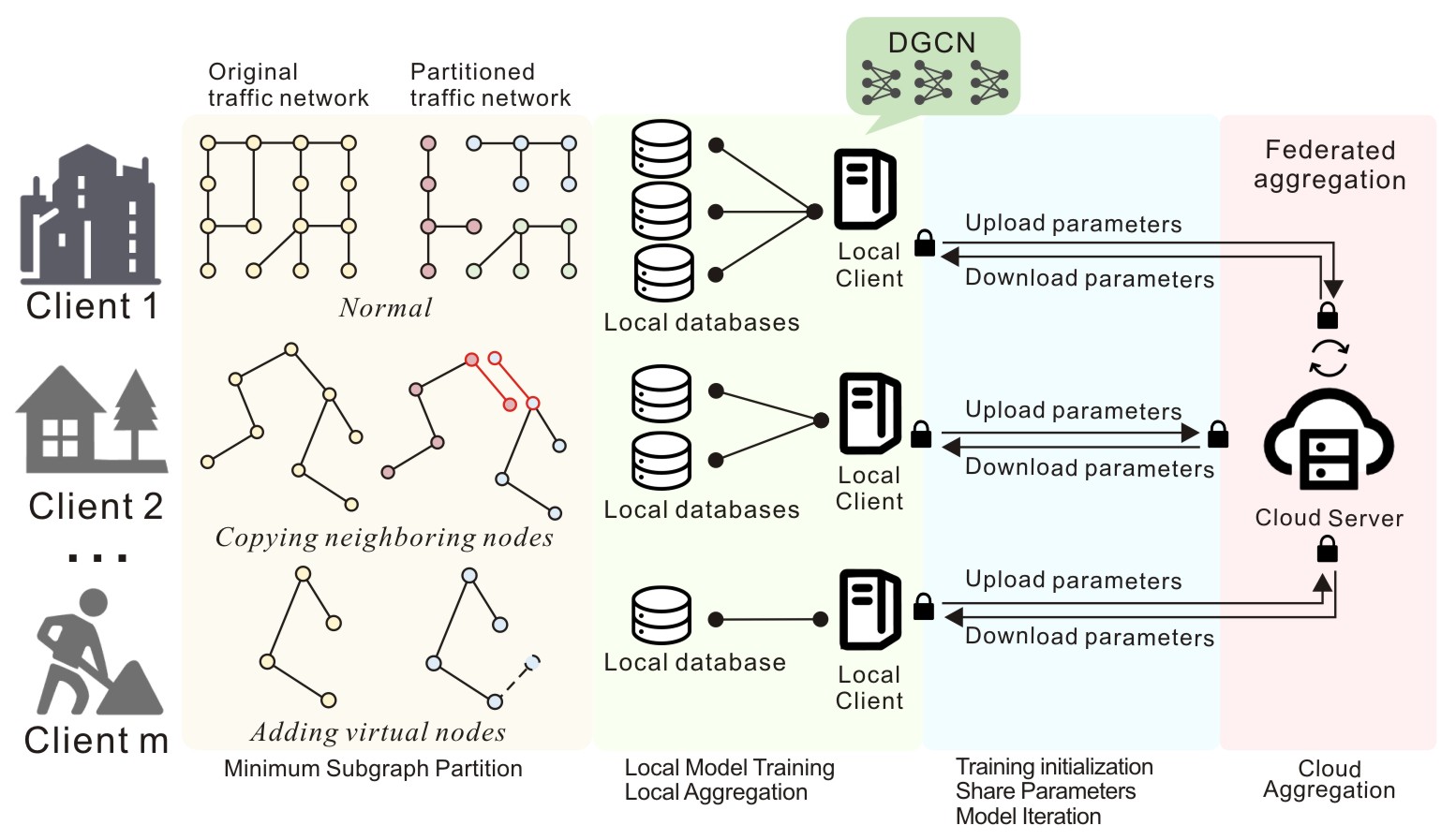
It is also a the traffic flow prediction extension based on FederatedScope.
NOTE: This is an early version of FedDGCN. The full version will be updated after testing is completed.
1. Environment
We run the experiment on a Linux system, i.e Ubuntu 22.04. It has not been tested on other systems yet.
Step 1. Create a Conda env
We recommend using a Conda virtual environment. This project supports Python 3.9 (recommended) and Python 3.10.
WARNING: Python 3.11 and later versions are not compatible!
conda create -n FedDGCN python=3.9
conda activate FedDGCN
Step 2. Install Pytorch
Download the appropriate version of PyTorch based on your device.
This project has been tested with Torch 2.4.0 (recommended) and Torch 2.0.0 with CUDA 12. Compatibility with other versions is not guaranteed.
Step 3. Install FederatedScope
git clone this repository, and
cd FS-TFP
pip install -e .
Additionally, you might need to install some extra packages to avoid annoying warnings.
pip install torch_geometric community rdkit
2. Run the Code
Step 1. Prepare the datasets
You need to download the PeMS dataset from the STSGCN repository following README. After downloading, extract the dataset and place it in the ./data/trafficflow directory at the root of the project.
The directory structure of ./data/trafficflow should be as follows:
FS-TFP\DATA\TRAFFICFLOW
├─PeMS03
├─PeMS04
├─PeMS07
└─PeMS08
Step 2. Check your Setting
We have placed the run scripts for the four datasets in the ./scripts/trafficflow_exp_scripts/ directory.
There are YAML files for four datasets: {D3, D4, D7, D8}.yaml.
You can customize the parameters or use the presets we provide.
Some key parameters include:
# Line 3: Adjust the GPU device to use (for multi-GPU machines)
device: 0

# Line 8: Adjust the total number of training rounds
total_round_num: <number_of_rounds>

# Line 9: Adjust the number of clients based on your machine configuration
client_num: <number_of_clients>

# Line 65: Adjust the training loss function
# Options: L1Loss, RMSE, MAPE
criterion:
  type: <loss_function>
WARNING: Processing the PEMSD7 dataset may require more than 32GB RAM. If your system lacks sufficient RAM, it is recommended to increase the size of the swap partition.
Step 3. Run the experiments
You can use the following command to run FedDGCN directly. It is recommended to create the corresponding run configuration in your IDE based on the command below:
# PEMSD3
python federatedscope/main.py --cfg scripts/trafficflow_exp_scripts/D3.yaml
# PEMSD4
python federatedscope/main.py --cfg scripts/trafficflow_exp_scripts/D4.yaml
# PEMSD7
python federatedscope/main.py --cfg scripts/trafficflow_exp_scripts/D7.yaml
# PEMSD8
python federatedscope/main.py --cfg scripts/trafficflow_exp_scripts/D8.yaml
If you see the following output in your terminal, congratulations! You have successfully run the experiment:

3. Visualize the result
The experiment logs will be placed in the exp folder. We have written a script, global.py, in the exp folder. You need to replace the previous logs with the new ones generated from the experiment. Once replaced, simply run the script to visualize the experiment results.
python exp/global.py
The script will generate a baseline.jpg file to visualize the logs. You are also free to modify the script to implement additional functionality as needed.
You may install matplotlib first for drawing:
pip install matplotlib
Citation
TBD
Acknowledgements
We would like to extend our gratitude to the authors of the following works: FederatedScope Our codes are built upon their open-source projects.